1. Navigate to https://www.clever.com/
2. Click "Log in as student" to display additional log in options
3. Click "Teacher or Staff"

4. If you are asked to enter a school name, search "National Cathedral School" and select the appropriate division/category (lower, middle, upper, staff)

5. Click "Log in with CloseWide Credentials".

6. Enter your NCS credentials and click "Sign in"
7. Click "Log in as a teacher" if you are given options.

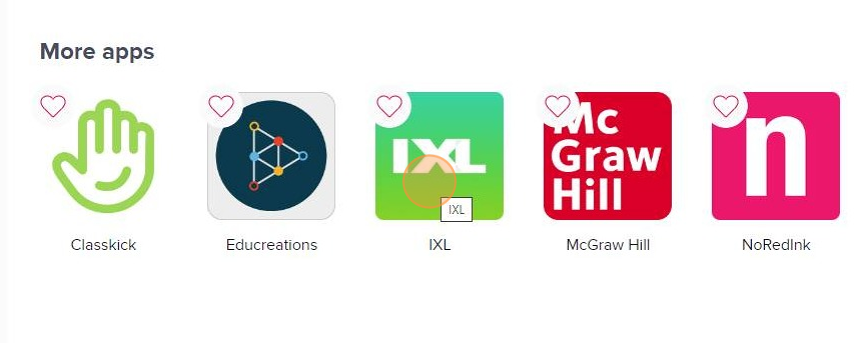
8. Apps linked to your account will be displayed. Students see a similar page with app they can access.
Was this article helpful?
That’s Great!
Thank you for your feedback
Sorry! We couldn't be helpful
Thank you for your feedback
Feedback sent
We appreciate your effort and will try to fix the article